> For the complete documentation index, see [llms.txt](https://extend-robotics.gitbook.io/user-guide/llms.txt). Markdown versions of documentation pages are available by appending `.md` to page URLs; this page is available as [Markdown](https://extend-robotics.gitbook.io/user-guide/amas-vr-application/hand-tracking.md).
# Hand Tracking
Instructions for how hand tracking works.
### Supported Headsets
Hand tracking is currently available on Meta Quest headsets that support OpenXR. For optimum performance and accuracy, we recommend the Meta Quest 3.
## How to activate
If hand tracking is not enabled on the headset, visit the [Meta Quest documentation](https://www.meta.com/en-gb/help/quest/articles/headsets-and-accessories/controllers-and-hand-tracking/hand-tracking/) and enable the hand tracking feature.
Following this, you will need to create a developer account and enable developer mode to use hand tracking with the Quest headset connected to the PC.
### Creating an Organization
1. Go to the [Create New Organization](https://developer.oculus.com/manage/organizations/create/) page of the Meta Quest Developer Dashboard.
2. Fill in the appropriate information.
### Verify Your Account
1. Go to the [verification tab](https://developer.oculus.com/manage/verify/) of the Meta Quest Developer Dashboard.
2. If prompted, login with your Meta Developer account.
3. Verify your account with one of the two following options:
* Confirm your mobile number to set up SMS two-factor verification, please visit [FB Help Center](https://www.facebook.com/help/130694300342171) to ensure that your country and phone carrier are supported for SMS.
* Add a payment method to your account (Paypal excluded).
### Enable Developer Mode
Once you belong to a developer organization, follow these steps to put your device in developer mode:
1. Download and open the Meta Horizon mobile app, and navigate to **Menu** > **Devices**.
2. Select your device. Then, select **Headset Settings** > **Developer Mode** and switch on **Developer Mode**.
### Meta Quest Link Configuration
Open the Meta Quest Link application, select `Settings`, then click on the `Beta` tab and enable `Developer runtime features`.
Once enabled, hand tracking will automatically activate when users put down their controllers. Grabbing the controllers again will automatically deactivate hand tracking.
## Using Hand Tracking
### Gesture recognition
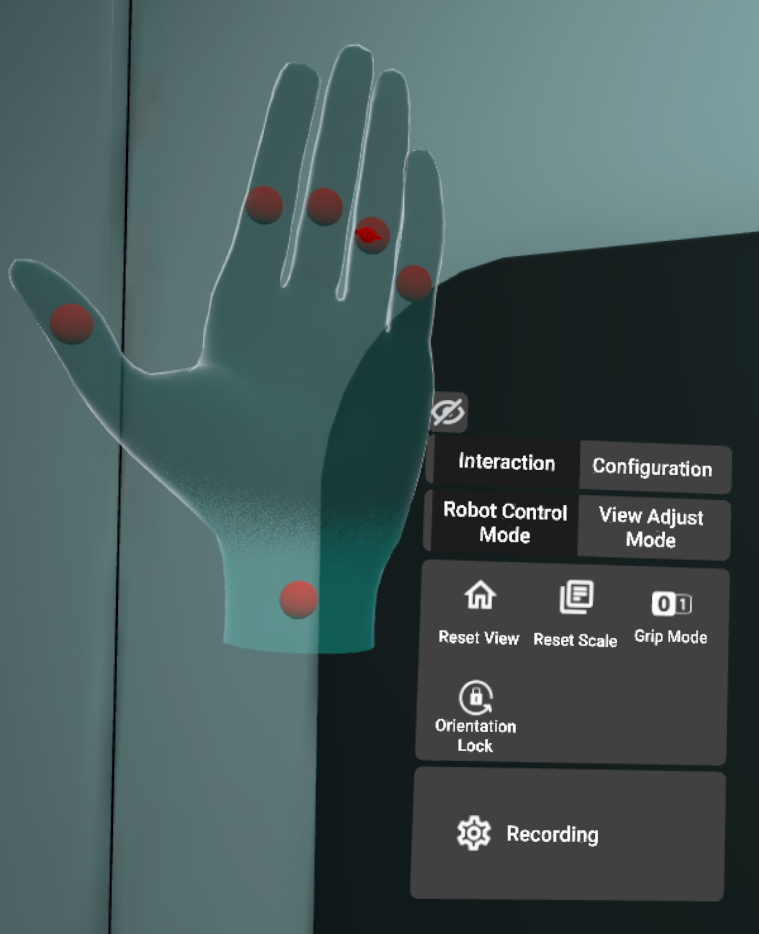
When selecting the `View Adjust Mode` in the wrist panel, a user can scale, rotate, and move through a scene using hand gestures.
### Moving
To move around the scene, select `View Adjust Mode` and use the grasp gesture to move.
### Scaling and Rotation
Use the grasp gesture with both hands to scale and rotate the scene. Grasp with both hands and move them apart to scale up the scene, or bring the hands closer together to scale down the scene.
If the hands are moved in rotation(for example, when one hand is moved forward and the other is kept stationary or backwards), the scene will rotate accordingly.
### Robot Control
Hand tracking will be automatically activated when controllers are not tracking.
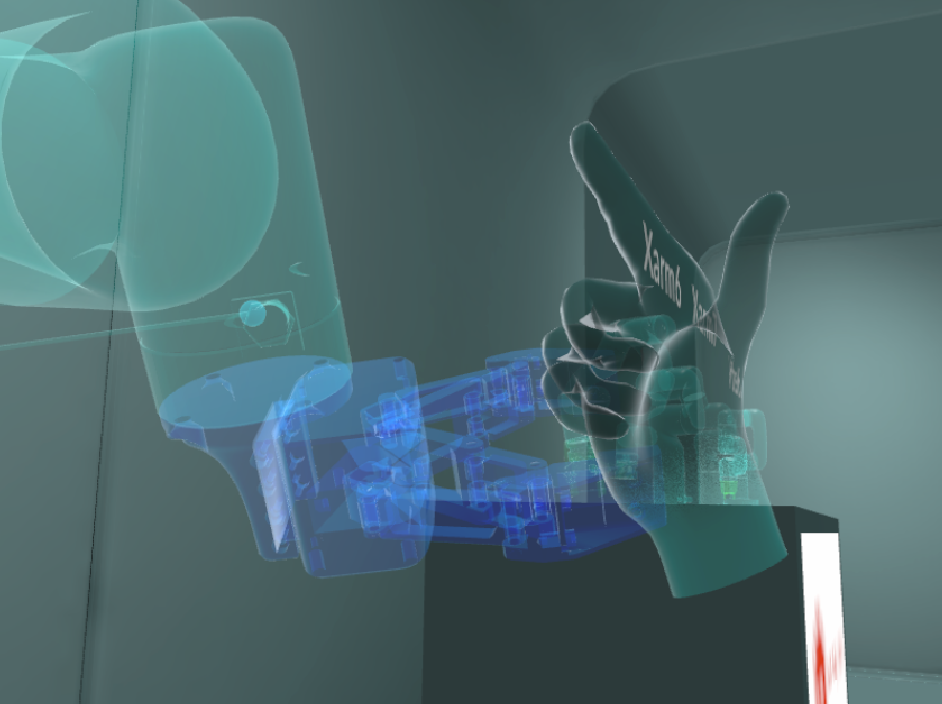
To control the robot, select `Robot Control Mode` use the grasp gesture as shown in the image to take hold and manipulate the robot. Extending and clasping the index finger will open and close the gripper.
If the robot's gripper is equipped with the "[Dextrous Hand](https://en.inspire-robots.com/product/rh56bfx)" by Inspire Robots, then assuming control of it must be done using the [Speech Recognition](/user-guide/amas-vr-application/speech-recognition.md) feature. See the [Dextrous Hand setup page](/user-guide/cortex/initial-setup-instructions/dexterous-hands/dexterous-hand-with-xarm.md) for more information.
#### How to use Dextrous Hand with Hand Tracking.
* From the settings menu, turn on the Speech Recognition.
* Use the command "Speech Recognition Start" to enable speech recognition.
* Switch to "Robot Control Mode" either using the control panel or with the "Robot Control Mode" command.
* Get the correct hand close to the Dextrous Hand.
* Use "Engage Manual Control" command to take control of the hand.
{% hint style="info" %}
**Important**: Before changing into View Adjust Mode, use the "**Disable Manual Control**" or the "**Manual Control Stop**" command to stop controlling the hand.
{% endhint %}
### UI
While using hand tracking, users can interact with the UI using the tip of their index fingers.
### Dexterous Hand Mapping
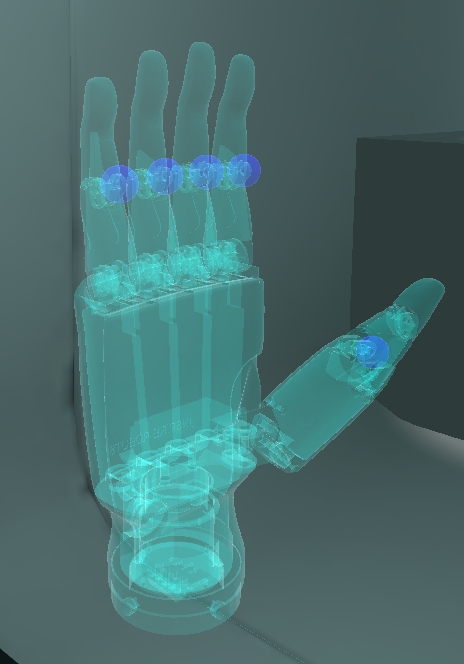
For better accuracy and general purpose support hand tracking and Dexterous hand are mapped by a target for each finger consisting of 6 data points {3 scaling parameters / 3 offset parameters}, a total of 30 parameters for the whole hand to perfectly position targets on the dexterous hand.
* Offset (b) and Scaling (a) for each finger per axis, (6 parameters per finger x 5 fingers = 30 parameters in total)
* For each finger, each axis: y = a\*x+b, (x is target point from hand tracking, y is virtual target for digital twin hand gripper)
*
```
```
---
# Agent Instructions
This documentation is published with GitBook. GitBook is the documentation platform designed so that both humans and AI agents can read, navigate, and reason over technical content effectively. Learn more at gitbook.com.
## Querying This Documentation
If you need additional information that is not directly available in this page, you can query the documentation by asking a question.
Perform an HTTP GET request on the following URL with the `ask` and `goal` query parameters:
```
GET https://extend-robotics.gitbook.io/user-guide/amas-vr-application/hand-tracking.md?ask=&goal=
```
`ask` is the immediate question: it should be specific, self-contained, and written in natural language.
`goal` is what the user is ultimately trying to achieve, the reason they need the answer. Sharing it helps GitBook give you a better, more relevant answer. A goal is most helpful when it describes the outcome the user wants rather than restating the question. For example, with `ask=how do I create an API token`, a goal like `automate deployments from our CI pipeline` lets GitBook tailor the answer to that use case.
The response will contain a direct answer to the question and relevant excerpts and sources from the documentation.
Use this mechanism when the answer is not explicitly present in the current page, you need clarification or additional context, or you want to retrieve related documentation sections.